


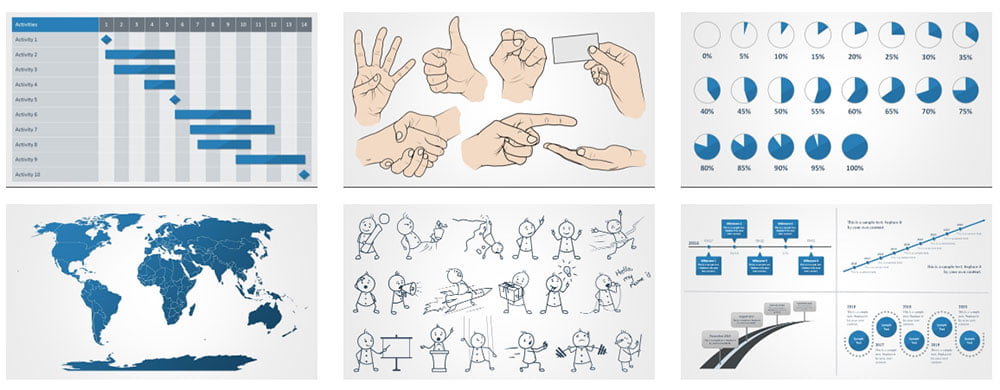


Is it too controversial to say that, at some point, most people could benefit from some clip art in their presentations? It may have earned itself a notorious reputation but at its most basic definition the term clip art does simply represent pre-made images that can be used in whatever medium. In this article, Farshad Iqbal introduces ShapeChef, the PowerPoint add-in that could help you greatly in finding the right graphic to tell the right story.
I was never personally a huge fan of Microsoft Clipart. I always thought it was somewhat dull and never seemed to have anything that could really stand out. No wonder Microsoft ended the built-in Clipart library back in December 2014. This fateful day those who for some reason relied on using Microsoft Clipart were left on their own to explore new options, which in my opinion wasn’t a bad thing.
Bing Search Powered Images Aren’t the Best Option for PowerPoint Users
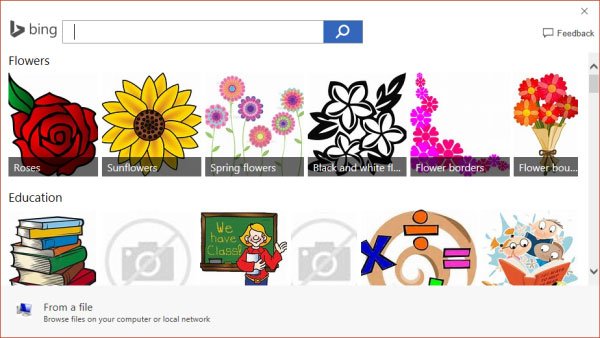
While Microsoft now allows searching the web directly via PowerPoint to look for images, these images can often be protected by copyrights or the search might give you images that aren’t editable. Furthermore, the Creative Commons backed search by Bing offered in new editions of PowerPoint, such as PowerPoint 2013 and PowerPoint 2016, also has its pitfalls. It’s not until you see the fine print of the license that you can determine if it requires an attribution, or if you can use it for a presentation.
Lifetime Supply of Clipart with ShapeChef
A simple alternative to circumvent all that hassle is to use a simple add-in called ShapeChef. ShapeChef provides a built-in library of clipart images, charts and editable diagrams. The ShapeChef library is regularly updated with new content and the already available clipart is sufficient to give you a lifetime supply of clipart. You can get started with this add-in by downloading ShapeChef.
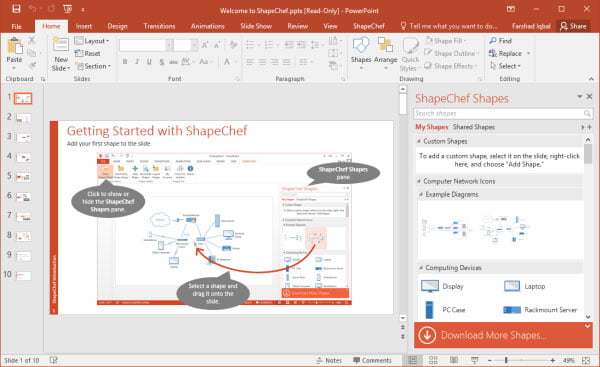
Once you have downloaded and installed ShapeChef an introductory slide deck will open. This will guide you through the various features of ShapeChef and how you can instantly find and install clipart from this add-in.
Drag and Drop Clipart to Slides
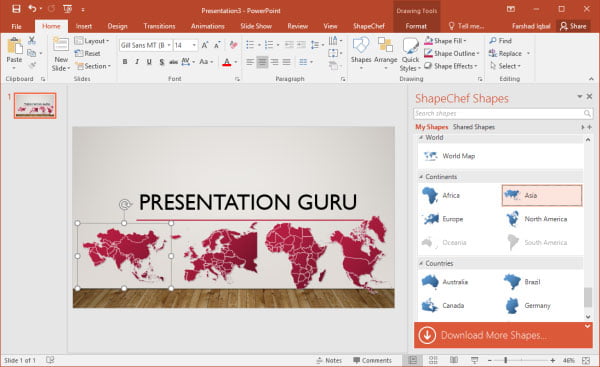
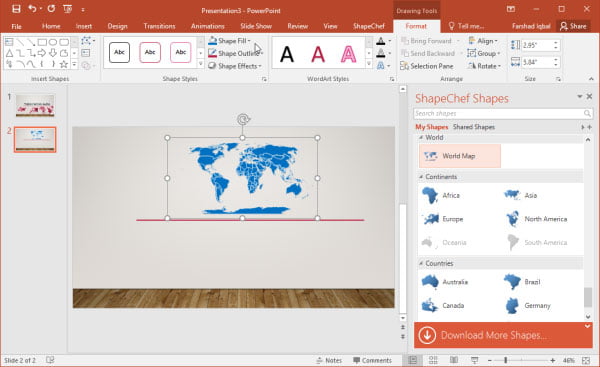
You can pick a clipart image from the pane on the right and drag it to your slide. These are high-quality clipart images and can be resized using drag and drop without loss of image quality. Below is an example of how we designed a slide with maps from different continents taken from ShapeChef.
Recolor and Edit Clipart
The clipart images can be recolored using PowerPoint Drawing Tools like Shape Fill. This can help you recolor your images to match your presentation theme. As mentioned earlier, you can also resize your clipart images.
Editable Charts and Diagrams
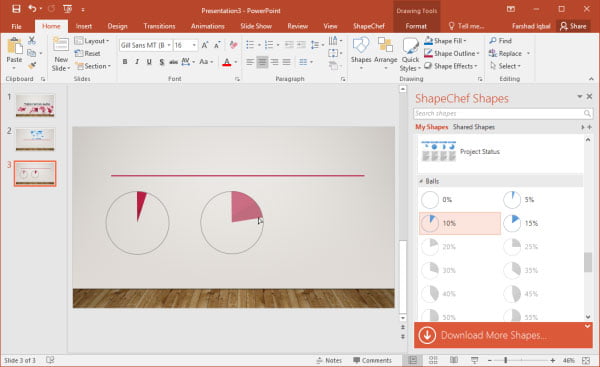
ShapeChef not only provides clipart but also editable charts and diagrams. The image below shows how you can edit a Harvey ball using drag and drop.
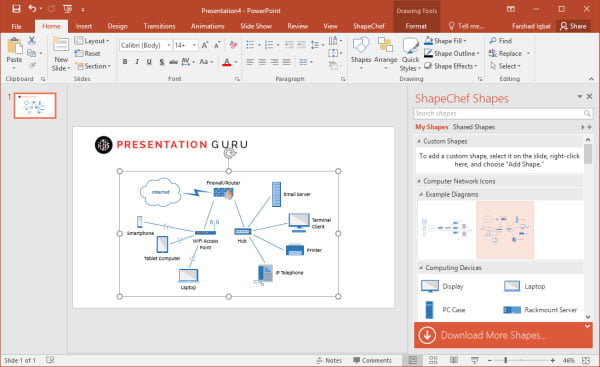
There are also built-in diagrams that can be edited. These diagrams come with elements that can be individually selected. Once selected, you can edit, remove or move these elements to edit sample diagrams.
Periodically Download New Clipart from the ShapeChef Library
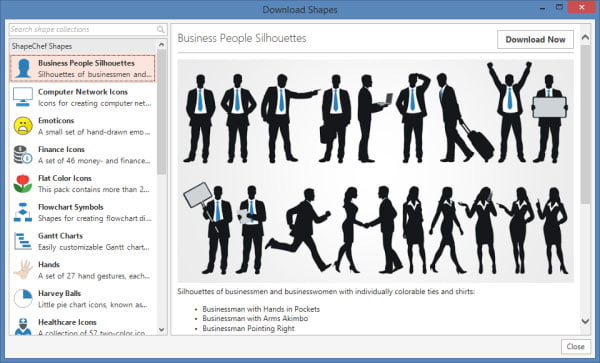
By default, ShapeChef does not download all clipart to your system. You can pick and choose the type of clipart you need and download the specific libraries according to need. This can help you keep your clipart library more organized. Furthermore, the clipart library is periodically updated.
ShapeChef Introductory Video
To find out more about this awesome clipart add-in, see the developer’s introductory video given below.

ShapeChef is a paid add-in, however, it comes with a free trial that you can use to see if it’s worth your money. ShapeChef currently only works with the Windows version of PowerPoint. According to the developer, they have been trying to bring a Mac version but for now Office for Mac does not provide the necessary interface that can help the developers introduce a Mac variant.
If you liked this, you might also like
5 Ways to Make Your Presentation More Visual and More Effective
Finding visuals to support your message: From Bullet Points to Visual Language – Finding the Right Images
91 Places to Look for the Perfect Image


Farshad Iqbal
Latest posts by Farshad Iqbal (see all)
- Let’s look at Interactive Digital Whiteboards - 6th March 2018
- Six of the Best Laptops for Presenters - 16th January 2018
- Where Can I Find Great Clip Art and More for Powerpoint? - 12th December 2017
- The Best Digital Whiteboards for Presenters - 21st November 2017
- The Best Screen Mirroring Apps and Technology for Every Occasion - 24th October 2017