


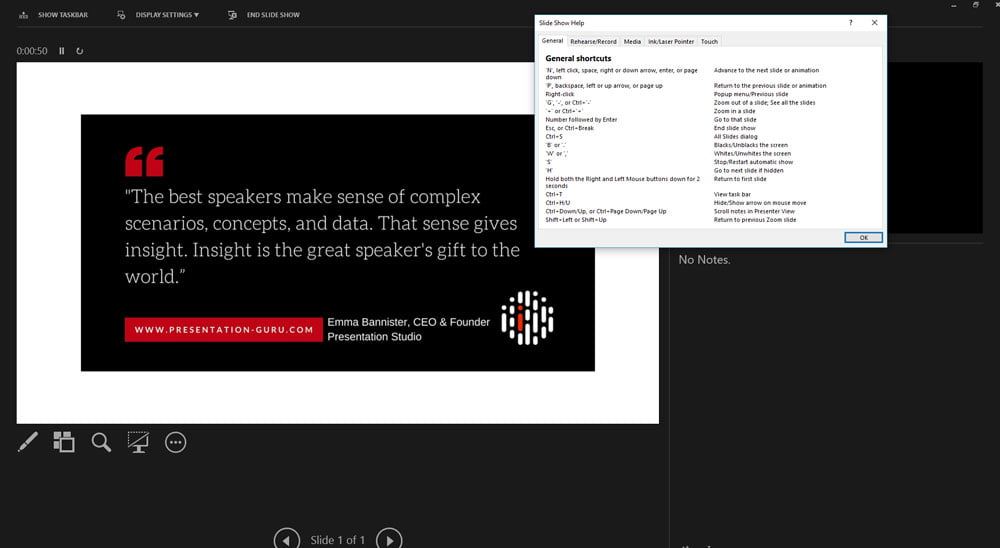


Most speakers want to look effortlessly in control when they speak: in control of their subject, their nerves and their technology. In most cases, controlling the technology is the bit that even the most experienced presenters get wrong. How many times do we see a speaker struggling to move to the right slide in their talk, or clicking forward and back through 20 slides to find the image that someone has just asked a question about? Or how often do we see someone trying to cue, play or stop an embedded video and having to scrabble around with their mouse in front of hundreds of people. There’s really no need for this kind of amateurism. PowerPoint has the answer for most of a presenter’s ‘in-presentation’ needs.
This post is about showing you PowerPoint’s best kept secrets for the presenter. Reading it and watching the video will help you understand a few simple ‘tricks’ that will help you look and feel much more cool and calm as you talk. It’s a post primarily for the presenters among us, but it’s also for others too. Because all you designers might like to hang on because you can pass these tips on to your clients to help them present more confidently for themselves. And we’re all all about helping our clients present brilliantly, aren’t we?
I travel all around the world coaching people on how to present with more power and more impact. Sometimes we spend two or three days writing, refining and shaping an important speech. Then, finally, we get to the final rehearsals, on stage, in the auditorium. That’s when we start working with PowerPoint and the speaker together for the first time. That’s when I start to share these hidden tips with people, particularly if they are controlling the slides themselves, or have a tech-geek doing it for them. When I share these amazing PowerPoint tips I’m always disappointed how enthusiastically they are received. I think it’s all about my genius, yet all they can talk about is the PowerPoint tips!
Seriously though, it’s surprising how many very experienced speakers have never learned of the in-presentation tools that would help them:
- Make a point
- Navigate to specific slides without all that ‘Esc’ and search nonsense
- Mark-up slides to remember or emphasise a point
- Control videos without the trackpad
- Use touch screens
Most presenters have found ‘workarounds’ to help them get by, but few know all of these tips. The tips listed here help even experienced presenters build that little bit more professionalism and fluidity into their core skills; and help the less experienced get more confident and stand out from their less savvy peers.
Here’s the video
The headlines, if you’d rather have them in writing
Let’s first find out what those tools do. If you’re at your PC
- Open your presentation, click on the slideshow button and start the ‘Present’ mode.
- Now hit the F1 key
- You should see this ‘pop up’ appear.
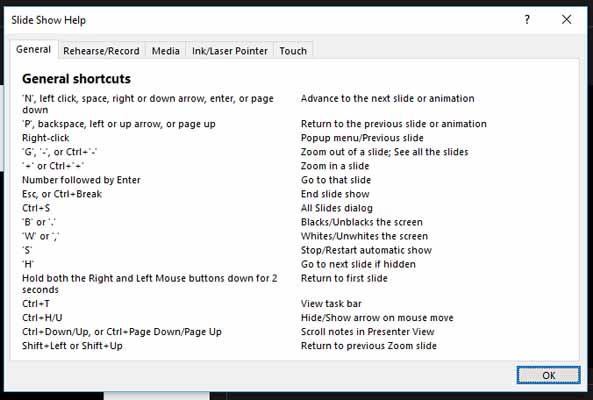
PowerPoint’s in-presentation list of commands
- Notice the simple keystrokes for navigating while the presentation is playing without any of the ‘faffing about’ clicking through a whole bunch of slides.
Switching ‘off’ the presentation for a while
- Hit the ‘B’ key to turn the screen black, and ‘B’ again to bring that same slide back up into view without coming ‘out’ of the presentation.
- If you’d rather have a white screen, guess what? Just hit the ‘W’ key to turn the screen white – particularly useful if you want to project something over it, or are projecting on to a whiteboard or using an interactive whiteboard – and ‘W’ again to bring that same slide back up into view without coming ‘out’ of the presentation.
Navigating to specific slides
- If you want to navigate to specific slides you can just type in the number of the slide you want and hit ‘Enter’ and PowerPoint will take you straight to that slide. If you want to go to any other slide then just hit the number of that slide, ‘Enter’ and there you are.
- This is particularly useful if you have a ‘Key Slide’ in your presentation with lots of hyperlinks to other slides or chapters of a complex presentation. All you need to do is remember the number of that slide and keep on going back to it thereafter.
- PowerPoint’s new ‘ZOOM’ feature allows you to do some of this too, but it’s only available on PowerPoint 2016 onwards.
Recording narrations
If you click on the second tab you’ll see that you can click on the ‘R’ key to start or restart your recording on that particular slide.
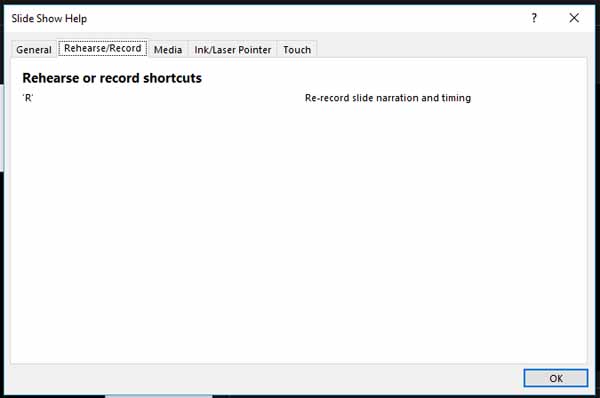
Recording narrations
Controlling Video and Media
Next there’s a whole load of keystroke shortcuts for using video in your presentations that will help you look masterful when introducing a video and save you from having to scrabble around with your mouse to get the video to play at all, or stop or start it.
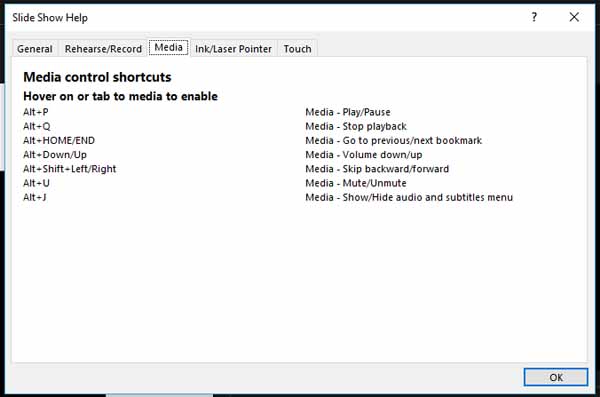
Control those pesky videos from your keyboard
Inking and marking-up your slides in presentation
The next tab shows you a set of really useful tools for teachers and meeting leaders, where you can turn your mouse pointer into a pen, or a laser pointer to help scribe or emphasise your key points, live to an audience.
- CTRL+P changes your pointer to a pen and back again.
- CTRL+E changes the pointer into an eraser and back again
- ‘E’ alone erases all that you’ve scrawled on the slide
- CTRL+L changes the pointer to a laser
Controlling your touch-screen presentation
The next tab shows you a set of really useful commands for people using touch screen presentation devices.
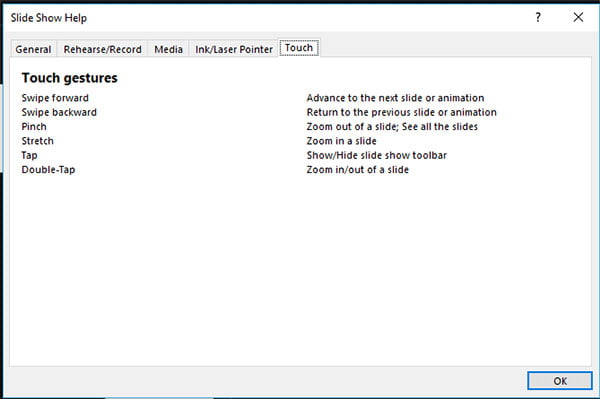
Commands for touch-screen devices
Whatever the tricks you want to use, there’ll be a few here that will really help you master this amazing piece of technology. For more video hints and tips why not visit our YouTube channel.


Jim Harvey
Latest posts by Jim Harvey (see all)
- Influencing Strategy – The Overton Window - 21st November 2024
- Make Your Sales Presentations Land and Stick: Using Ancient Stories to Sell Modern Technology - 18th November 2024
- how to cook up the perfect ChatGPT prompt - 11th November 2024
- The Ultimate Guide to AI Tools: Part 3 - 10th November 2024
- The Ultimate Guide to AI Tools: Part 2 - 10th November 2024